Frequently Asked Questions
Everything you need to know about how you can leverage ClientPoint for all your business relationships.
What is different about my profile link in ClientPoint?
Your profile link is your relationship link where you can actually get business done with people. Make it your link in bio, add it to your email signature, put it on your business card and share it far and wide. Everyone who visits your profile link will arrive on a private and secure business relationship workspace, between you and them. From there, everything that you need to do in a typical business relationship is possible in this private space between the two of you, called a ClientPoint. Encourage people you know to go to ClientPoint.me to reserve their custom ClientPoint profile / relationship link before someone else takes it!
Does ClientPoint offer proposal and document automation capabilities?
Our proposal and document automation capabilities are the best in the world. Imagine setting up even the most extensive proposal in just seconds or minutes. Schedule a consultation with one of our experts or just get more info.
How do I unlock ClientPoint's Enterprise Solutions?
ClientPoint Enterprise Solutions will organize and transform the way you build your most valuable relationships and Book a meeting with one of our experts to get custom enterprise solutions and support.
If you want learn more about our full suite of products/capabilities Click here to learn about Clientpoint Enterprise Solutions.
What is ClientPoint and what is ClientPoint Enterprise?
ClientPoint is the company and global brand whose mission is to organize and transform the world’s most important business relationships. ClientPoint’s vision is to become the front office of business. You can sample the power of ClientPoint with our free web app and browser extension, where you can reserve your own custom link then share it with as many people as you would like, to create private & secure business relationship workspaces with each of them. Or you can level up to the full power of our enterprise offering.
ClientPoint Enterprise is our deeply capable SAAS (Software as a Service) platform used by many top companies around the world to more efficiently and profitably conduct their relationships with prospects, customers and partners.
How do I connect my ClientPoint to my CRM?
ClientPoint's Enterprise platform has the ability to connect to all popular CRM solutions, thanks to our extensive API capabilities. When you do this, ClientPoint becomes the "R" (the "Relationship") in your CRM. Learn more about how this can automated for your business and Find out more
How can I invite someone?
There are two ways to invite someone to ClientPoint.
- The first option to invite someone is using the Relationship drawer (to the left) in ClientPoint, click “Create Relationship”. A “Start a new relationship” panel will appear and prompt you to invite someone via email or search for existing ClientPoint users that you can connect with via name or email.
- The second option from the “Home” page is to use the global search just below the action cards that asks you what you would like to do today. Enter the name or email address of the person that you'd like to invite and/or connect with in ClientPoint.
What is a timeline and who can see posts to my timeline?
A timeline refers to a type of feed where all posts are listed in reverse chronological order. A post can be made public, all relationships, a specific person or to a group.
There are three different types of timelines:
- Your public timeline is visible from the home page and can be viewed by someone who is part of your relationship and group.
- Your relationship timeline is visible between the person that relationship is with and can only be viewed between you and that person.
- Your group timeline is visible between you and all others who are invited within the group.
How does sharing work?
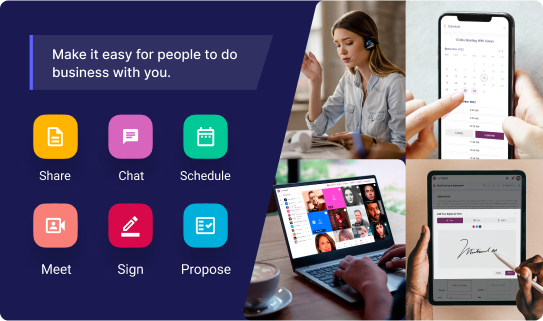
Sharing on ClientPoint is really simple, you can:
- Share content
- Schedule meetings
- Meeting
- Sign
- Propose
When selecting the options from the action cards, you’ll be given the option to select “Who would you like to share with?”, you’ll be able to choose one of the following:
- Public - visible to all
- All of My Relationships - Visible to your connected relationships
- Specific People - Visible to only the people you’ve selected
- Collaboration Group - Visible to the people in the group
Once posted, the action will be posted to the respective timeline/s.
How does schedule work?
When you click on Schedule on the action card you will see an option to enter your scheduler link to enable people to schedule a meeting with you. As part of the initial setup, you will be asked if you would like to share this link with the people you are connected with.
Our ClientPoint Enterprise users can set up a scheduler link with ClientPoint Schedule, not sure if you have this please reach out to support.
How to start and host a meeting?
From anywhere within ClientPoint your action card will show “Meet”. To start and host a meeting, click on Meet. You will be asked if you want to start a meeting for:
- Public - visible to all
- All of My Relationships - Visible to your connected relationships
- Specific People - Visible to only the people you’ve selected
- Collaboration Group - Visible to the people in the group
Select one of the options and a meeting invitation will be generated and posted on the selected timelines. Join the meeting or share the meeting link for others to join your meeting from a ClientPoint Meeting experience.
Anyone can join a meeting, a user account is not required.
Digital Sales & Support Rooms: ONE link for your prospects and customers to do all business with you for the entire customer journey Find out more
How to upload and send a document to be signed?
From anywhere within ClientPoint your action card will show “Sign”. To send a document to be signed, click on Sign. You will be asked to select the document that you would like to send for signature and add the fillable fields for the signers required.
Once the document is setup, you will be asked who you want to send this document to:
- Public - visible to all
- All of My Relationships - Visible to your connected relationships
- Specific People - Visible to only the people you’ve selected
- Collaboration Group - Visible to the people in the group
On each signing activity, the owner of the document and other signers will receive a notification.
Manage my notification preferences
To manage your notifications in app and via email, go to Profile (top-right) and click “Notifications Preferences”.
In your Notification Preference, you can decide on your preferences for:
- Desktop/Mobile Notifications
- Email Notifications
- Summary Notifications
You will be able to completely turn off the notifications and/or manage the individual notifications settings.
Get the most out of your ClientPoint notifications with ClientPoint API Analytics: Pull relationship engagement analytics into your favorite BI tools and dashboards bringing your customer insights to life! Find out more
How to reset your password?
Forgot your password? Use Reset Password found on the login screen at ClientPoint.me.
To reset your password for ClientPoint:
- Got to ClientPoint.me and click "Reset Password" on your login screen.
- Enter your email address when prompted and click "Reset Password"
- An email will be sent to you with your new password. Please log in and go to "Change Password" to update your password.
You’re logged in and need to change or update your password?
- Got to your Profile (top-right) and click "Change Password"
- Enter your new password.
- Confirm your new password
- Click Update
- Your password has been updated.
How to download and install the desktop app?
Install the ClientPoint app on your desktop
Install the ClientPoint app on your mobile device
Please note that the ClientPoint Enterprise solution is not supported in this app.
Want to learn more? Click here to access the knowledge base.
Still have questions?
Can’t find the answer you’re looking for? Please chat to our friendly team.
 GET IN TOUCH